Company Management
Companies are the root of the multi-tenancy hierarchy. All resources and users belong to exactly one company.
What Happens When You Create a Company
When a company is created, the system:
- Assigns a unique identifier to the company.
- Assigns you as the Global Admin of that company.
- Initializes default Environments (e.g., Development) if configured.
Security Rule: Users cannot access resources of a company they are not a member of.
UI Usage Guide
Follow these steps to create and manage companies in the admin panel.
Step 1: Create Your Company (First-time Setup)
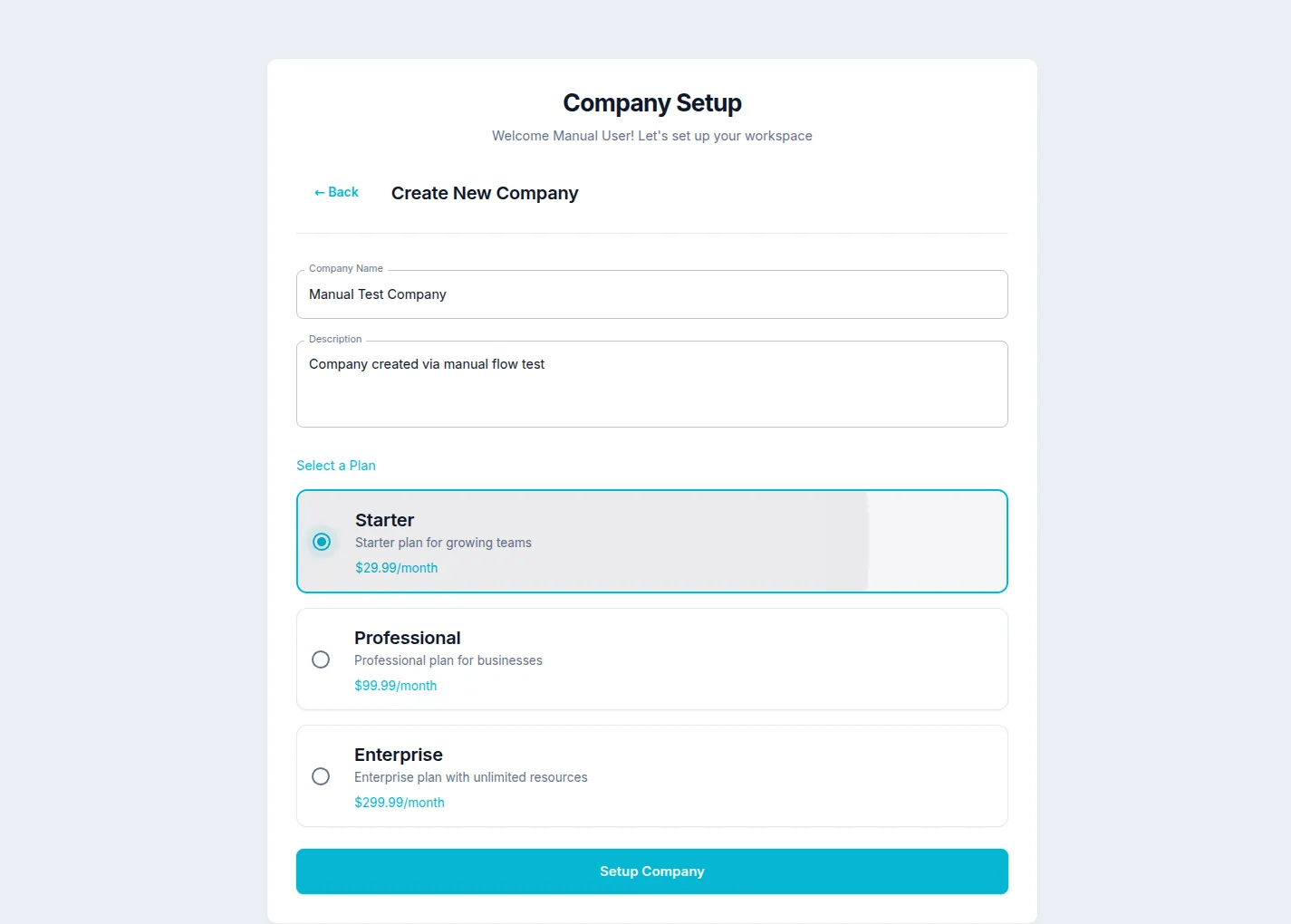
After signing up, you will be redirected to the Company Setup page.
- Click "Create New Company" card.
- Fill in Company Name (e.g., "Manual Test Company").
- Add a Description for your organization.
- Select a Plan from the available options (e.g., Starter).
- Click "Setup Company" to create your company.
You will be redirected to the main dashboard after creation.
Step 2: Edit an Existing Company
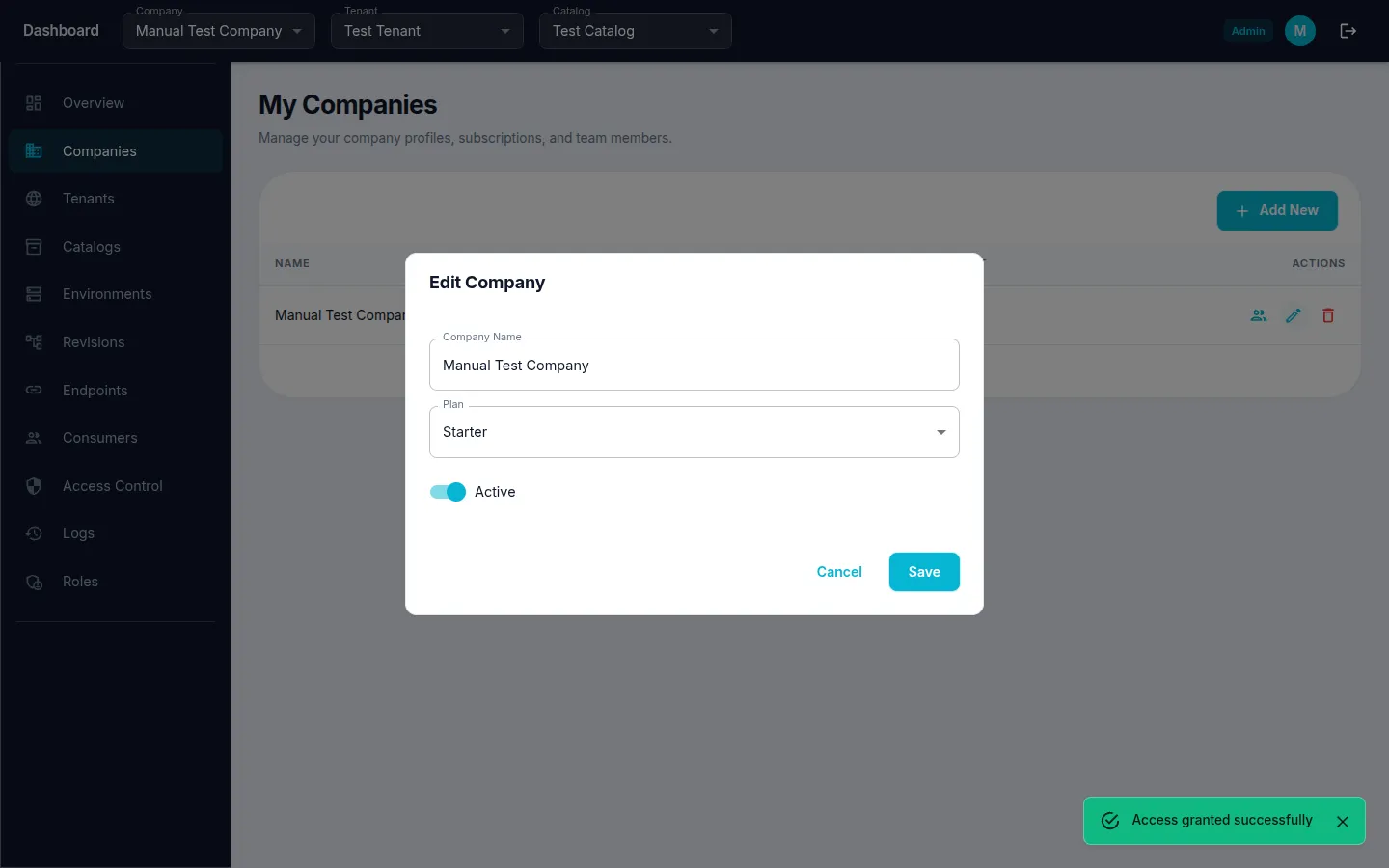
- Navigate to Companies from the sidebar menu.
- Click the edit icon (pencil) on the company row.
- Modify the Company Name or other fields.
- Click "Save" to apply changes.