Revisions
Revisions provide immutable snapshots of a Catalog's configuration. They are the key to safe deployments and rollbacks.
The Immutable Pattern
Whenever you want to change the endpoints in a Catalog, you don't edit the "live" configuration. Instead:
- The system maintains a Draft Revision.
- You add, update, or remove endpoints in this Draft.
- Once satisfied, you "Publish" this revision.
- Publishing marks the revision as immutable and makes it eligible to be linked to an Environment.
Safe Deployments
A Revision acts as a complete snapshot of all endpoints in a catalog at a specific point in time. When a Revision is linked to an Environment (e.g., Production), the Proxy immediately starts using that snapshot.
Atomic Rollback
If a deployment causes issues, rolling back is as simple as re-linking the previous (known-good) Revision ID to the Environment. The transition is atomic and takes effect as soon as the Proxy cache refreshes.
How Revisions Stay Consistent
Each revision captures a complete snapshot of all endpoints at the time it was published. This means that even if you later modify endpoints for a future draft, previously published revisions remain unchanged and stable.
UI Usage Guide
Follow these steps to manage revisions and deploy to environments.
Step 1: View Revisions
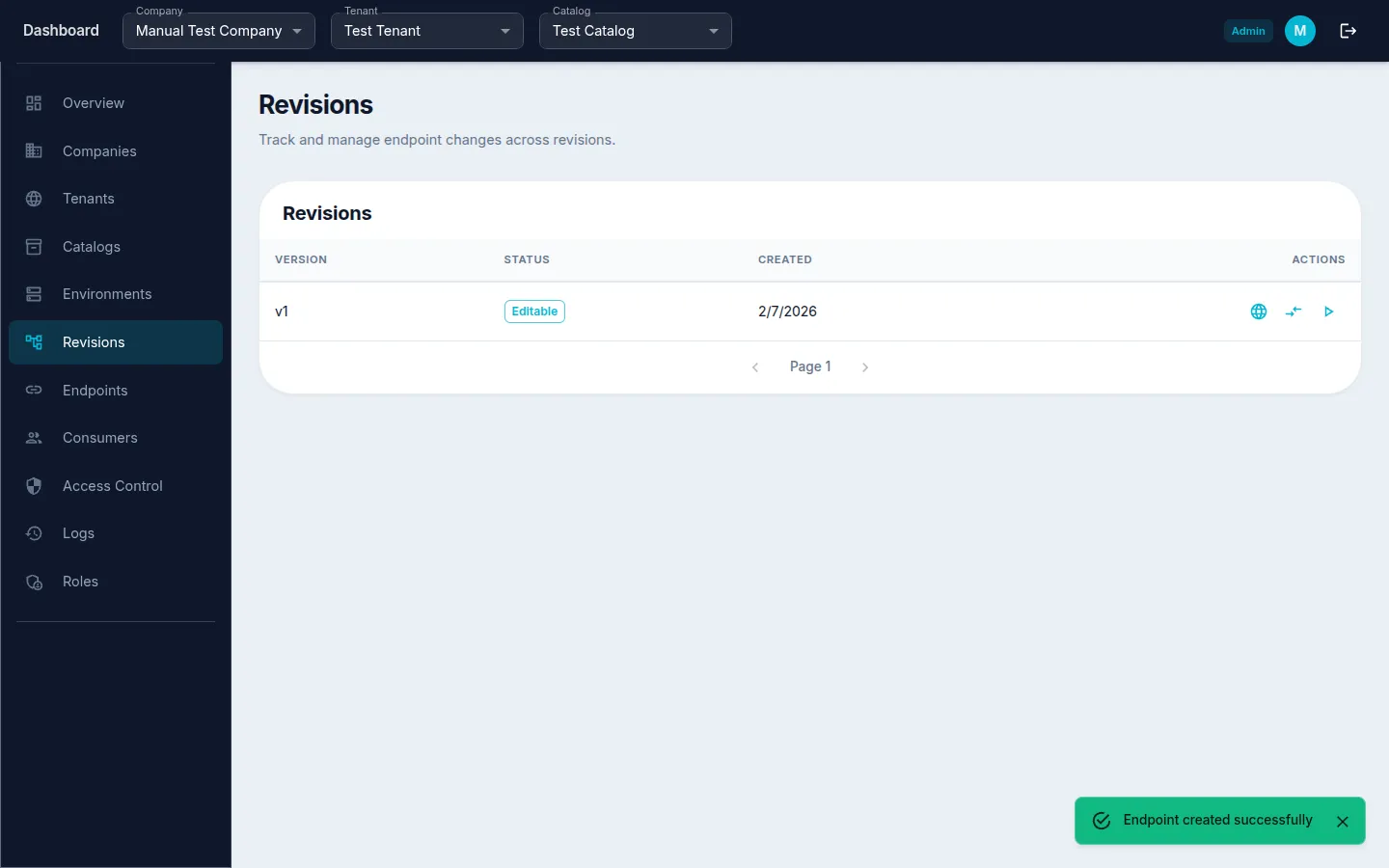
- Navigate to Revisions from the sidebar menu.
- The revisions list shows all available revisions for the current catalog.
- Each revision includes a "Compare with Environment" action button.
Step 2: Compare and Apply from the Revisions Page
- Navigate to Revisions from the sidebar menu.
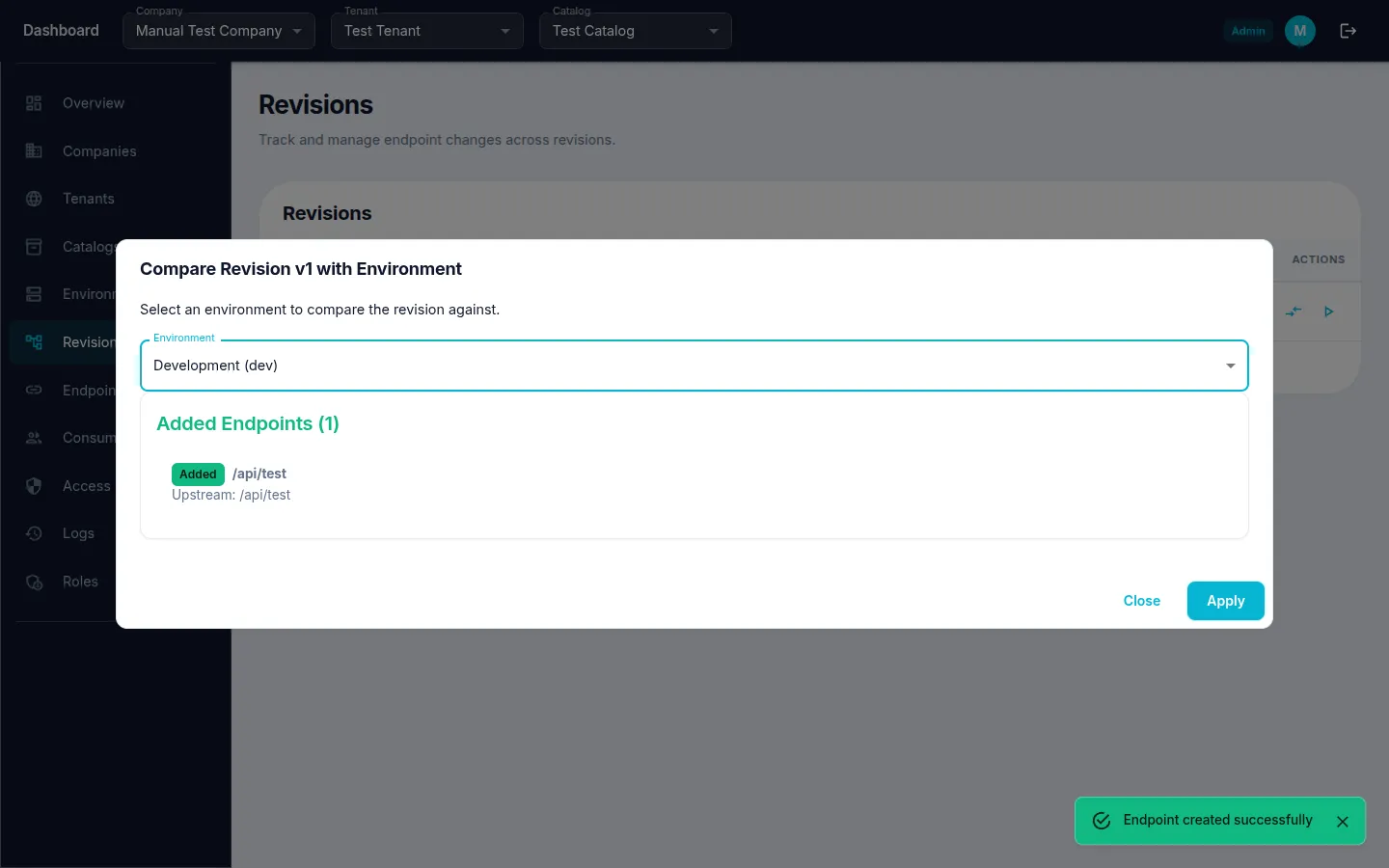
- Click the "Compare with Environment" action button on a revision row.
- Select the target Environment (e.g., "Development (dev)").
- Review the comparison view showing endpoint differences.
- Click "Apply" to deploy the revision to that environment.